AI has fundamentally changed what’s possible in photo editing. Tasks that once required professional software and significant skill — sharpening blurry images, reducing noise, upscaling resolution, restoring old photos — are now handled automatically in seconds by tools anyone can use. If you’re looking for an AI photo quality enhancer that works without subscriptions, software downloads, or technical knowledge, this guide explains how to get the best results from any type of image.
What AI Enhancement Does That Manual Editing Can’t
The core difference between AI enhancement and traditional photo editing comes down to understanding vs manipulation. Traditional editing tools manipulate existing pixels — sharpening increases edge contrast, noise reduction blurs fine detail, upscaling stretches pixels to fill a larger canvas. These operations work on the surface of the image without understanding what’s in it.
AI models understand image content. A portrait enhancement model knows the specific detail patterns of skin, eyes, and hair. A text enhancement model recognizes letter shapes and how they should look when sharp. An old photo restoration model understands the characteristics of film grain, fading, and scanning artifacts. This content-awareness allows the AI to apply the right enhancement to the right parts of the image — and avoid over-processing areas that don’t need it.
The Enhancement Modes and When to Use Each
| Mode | What It Does | Use It When |
| Enhance | All-purpose quality improvement — sharpness, noise, detail | Any photo that looks soft, flat, or unclear |
| Unblur | Targeted deblurring — reconstructs edges lost to blur | Out-of-focus shots, mild motion blur, soft images |
| Portrait | Face-specific enhancement — skin, eyes, hair | Headshots, portraits, group photos |
| Old Photo | Aged image restoration — grain, fading, scan artifacts | Scanned prints, early digital photos, archive images |
| Text Enhance | Text clarity focus — letter sharpness, readability | Screenshots, documents, presentation images |
| Upscale | Resolution increase with AI detail reconstruction | Images too small for intended use — 2x or 4x |
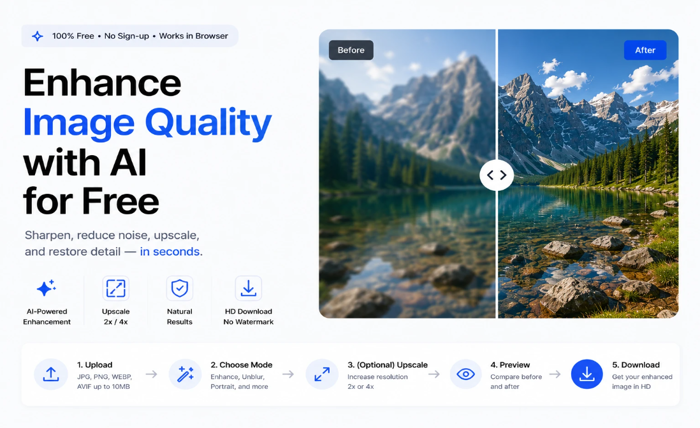
Step-by-Step: Enhance Image Quality with AI
Step 1: Open Phototune.ai in your browser. No account required — works on any device including mobile.
Step 2: Upload your image. Drag and drop or browse to select. JPG, PNG, WEBP, and AVIF formats up to 10MB are supported.
Step 3: Select the enhancement mode that matches your image type. If you’re not sure, Enhance mode works well for most general quality improvements.
Step 4: Choose an upscale level if the image also needs to be larger — 2x for moderate enlargement, 4x for significant size increases.
Step 5: The AI processes everything automatically in seconds. Use the before/after comparison slider to evaluate the improvement, then download at full resolution.
Getting the Best Results
A few practices consistently produce better outcomes:
- Use the highest quality source image available — more pixels give the AI more context for reconstruction
- Match the mode to the content — Portrait mode outperforms Enhance mode on faces, and Text Enhance outperforms general modes on screenshots
- Check the result at 100% zoom before downloading — differences in detail and sharpness are easiest to evaluate at full resolution
- For old printed photos, scan at 600 DPI minimum before uploading — the scan quality directly affects the restoration result
- If the first result isn’t perfect, try a different mode — some images respond better to Unblur than Enhance, and vice versa
Who Uses AI Photo Enhancement
E-commerce sellers: product photos that are slightly soft or too small for marketplace listings can be enhanced and upscaled without a new photoshoot. Sharper product images improve click-through rates and conversion.
Photographers: client portraits that need sharpening or noise reduction can be processed quickly — useful when working through large batches where manual retouching isn’t practical for every image.
Content creators: reference images, thumbnails, and social media visuals that have lost quality through downloading or compression can be restored before publishing.
Personal use: family photos from old cameras, scanned prints from decades past, or phone photos taken in poor conditions can all be significantly improved without any editing skills.
Phototune.ai is a practical photo enhancer free online that covers all common quality improvement needs in one place. Upload your image, select the right mode, and download a better result in seconds — no account, no software, no cost.